3D ILLUSION WORKFLOW

PREPARE RELIEF-STYLE ART FOR THE LASER.

A specialized guided workflow for emerging-subject, carved-depth and relief-style artwork. Image2Beam evaluates the image, matches the preparation to the selected material and laser, recommends editable starting values, guides the dither review, and carries the finished raster into File Deployment.

THE 3D MISSION

Six guided checkpoints. One specialized workflow.

The operator stays in control: recommendations are starting values, not locked settings.

01 / LOADReview the sourceConfirm dimensions, placement and working resolution.
02 / MATCHMaterial + laserSelect material, laser type and depth style.
03 / ANALYZE3D suitabilityEvaluate tonal range, midtones and clipping.
04 / ENHANCEApply starting valuesReview editable brightness, contrast, gamma and sharpening.
05 / DITHERMaterial reviewInspect the recommended raster dither and engraved preview.
06 / DEPLOYExport the rasterContinue into File Deployment with the 3D values active.
START WITH THE MISSION

3D Illusion is visible before the user enters the full console.
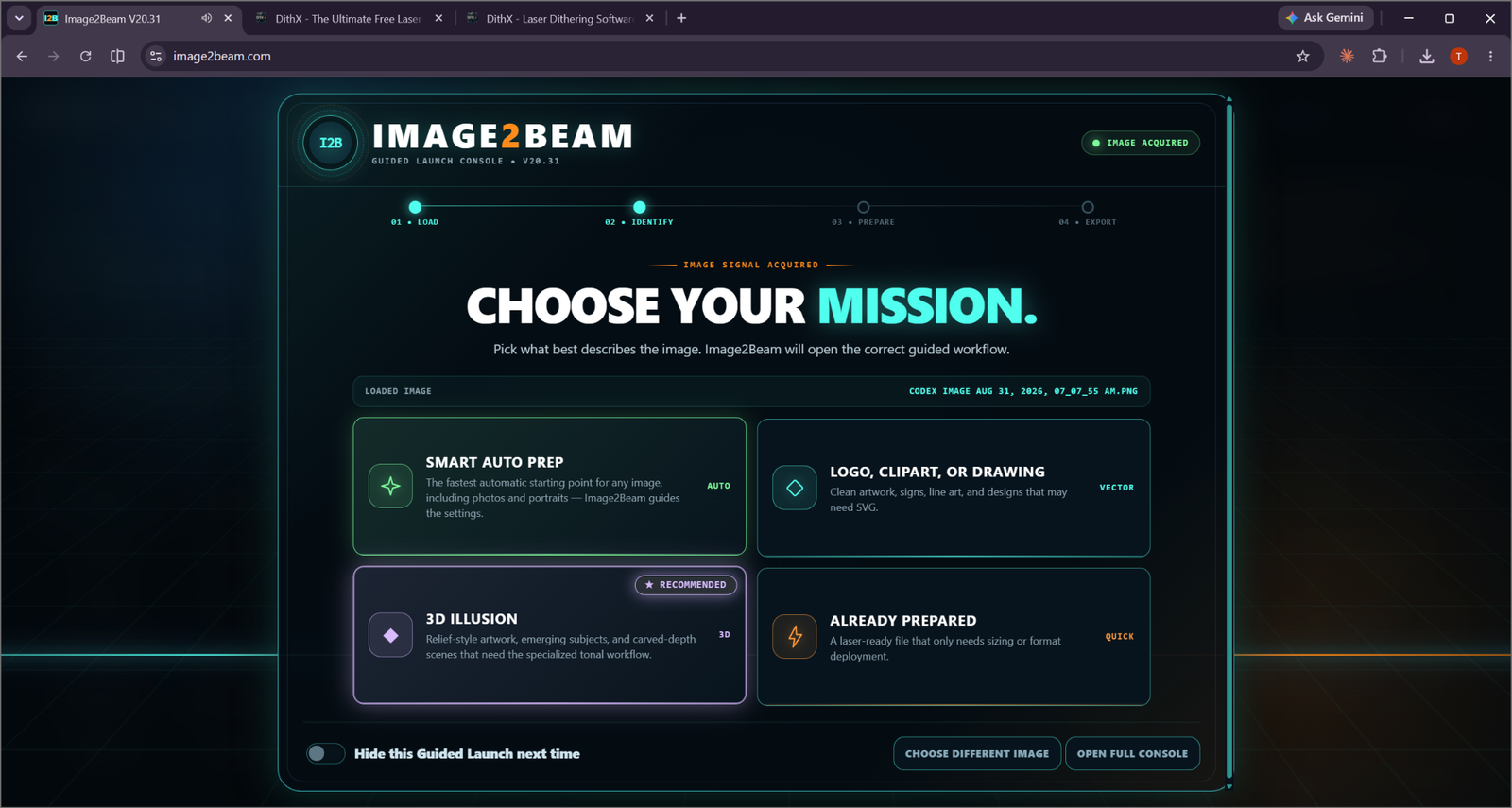
Image2Beam Guided Launch with 3D Illusion option

Choose Your Mission

3D Illusion appears beside Smart Auto Prep, Logo/Clipart/Drawing and Already Prepared.
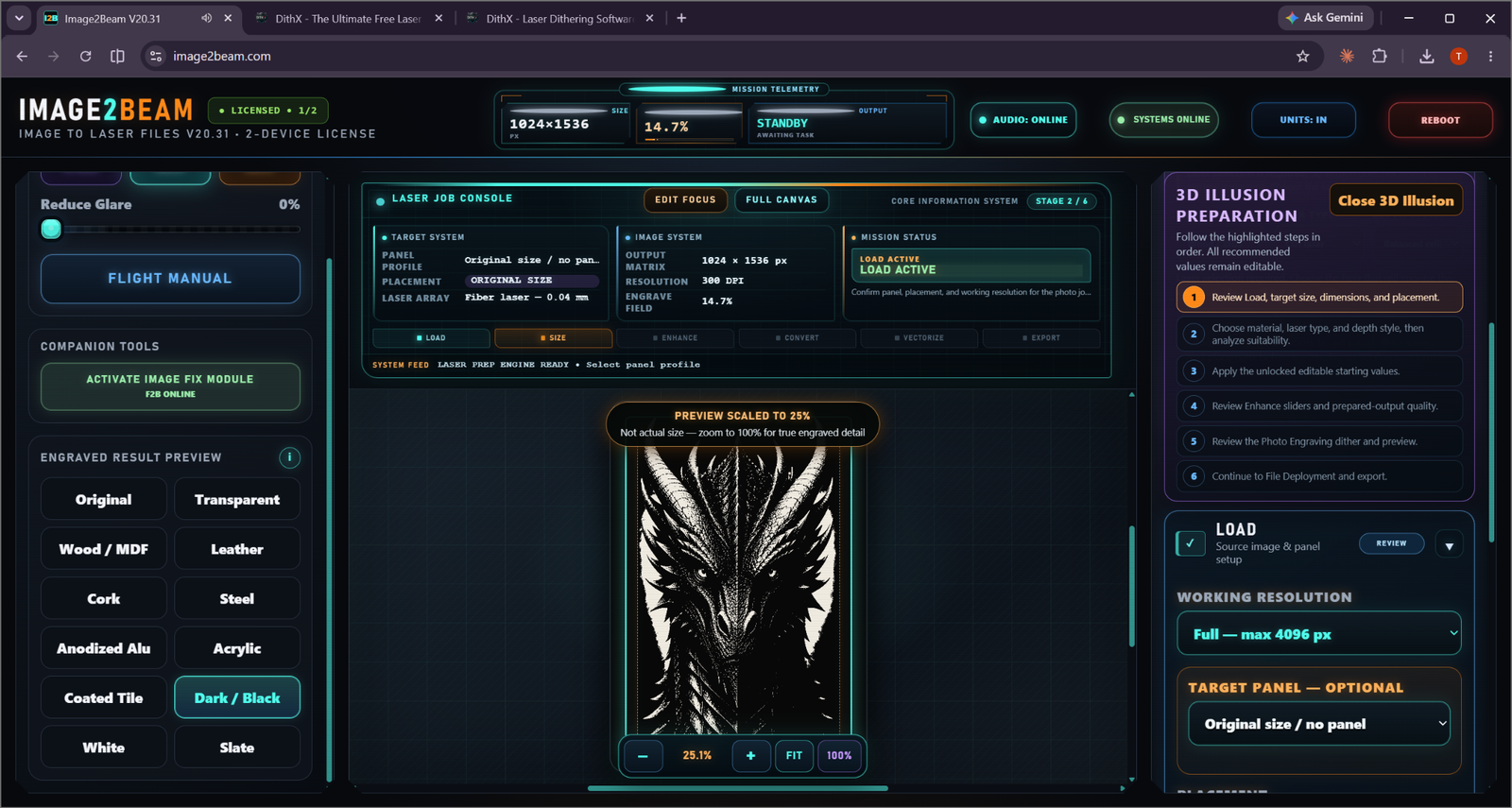
3D Illusion load stage

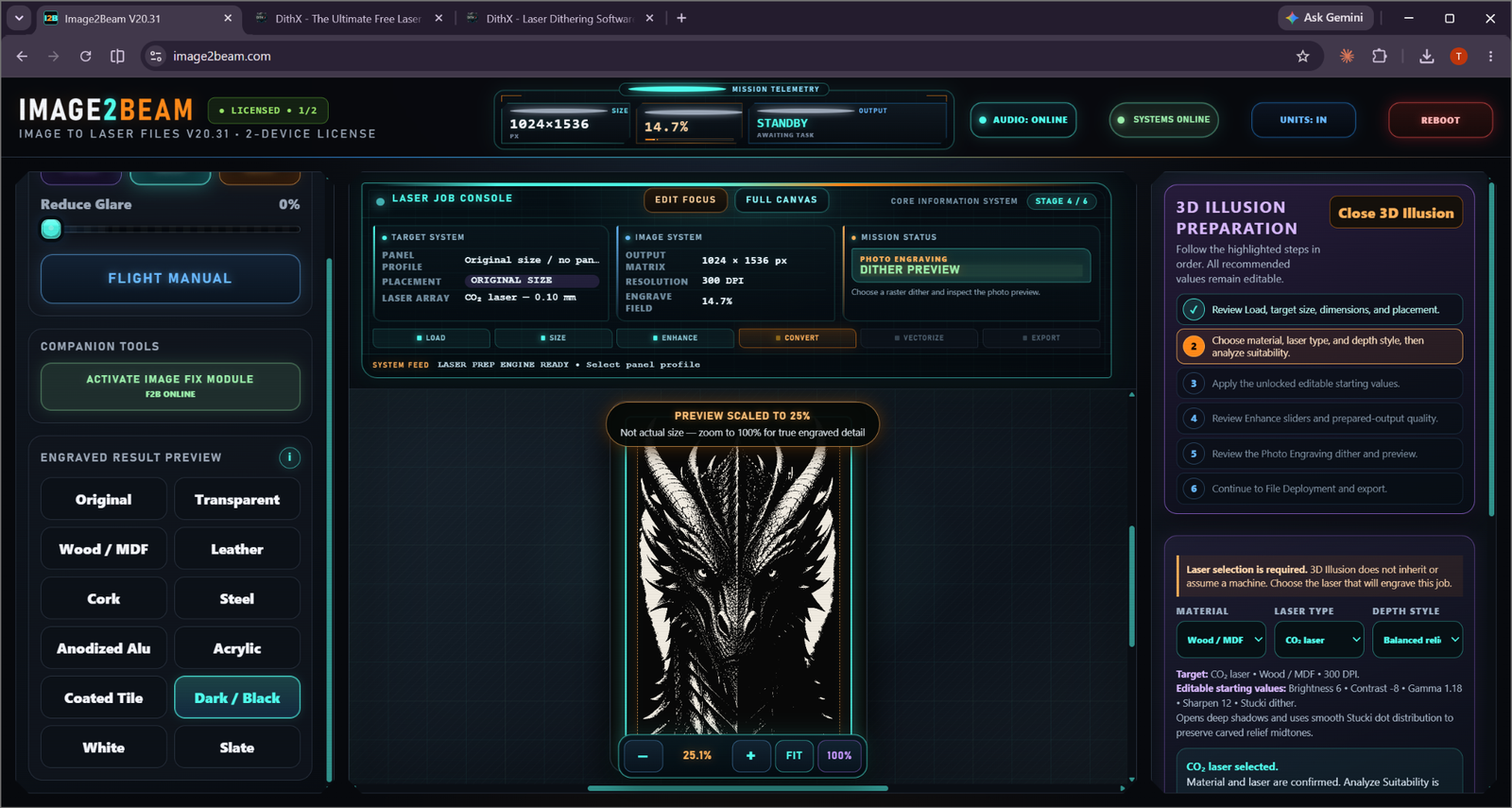
3D Illusion Preparation

The right-side guide shows all six checkpoints and highlights the next required action.
LASER + MATERIAL AWARE

The workflow is built around the job, not just the image.

3D Illusion material laser depth style selection

Choose material, laser and depth style

The workflow requires a laser selection rather than assuming a machine. Material, laser type and depth style shape the recommended starting values.

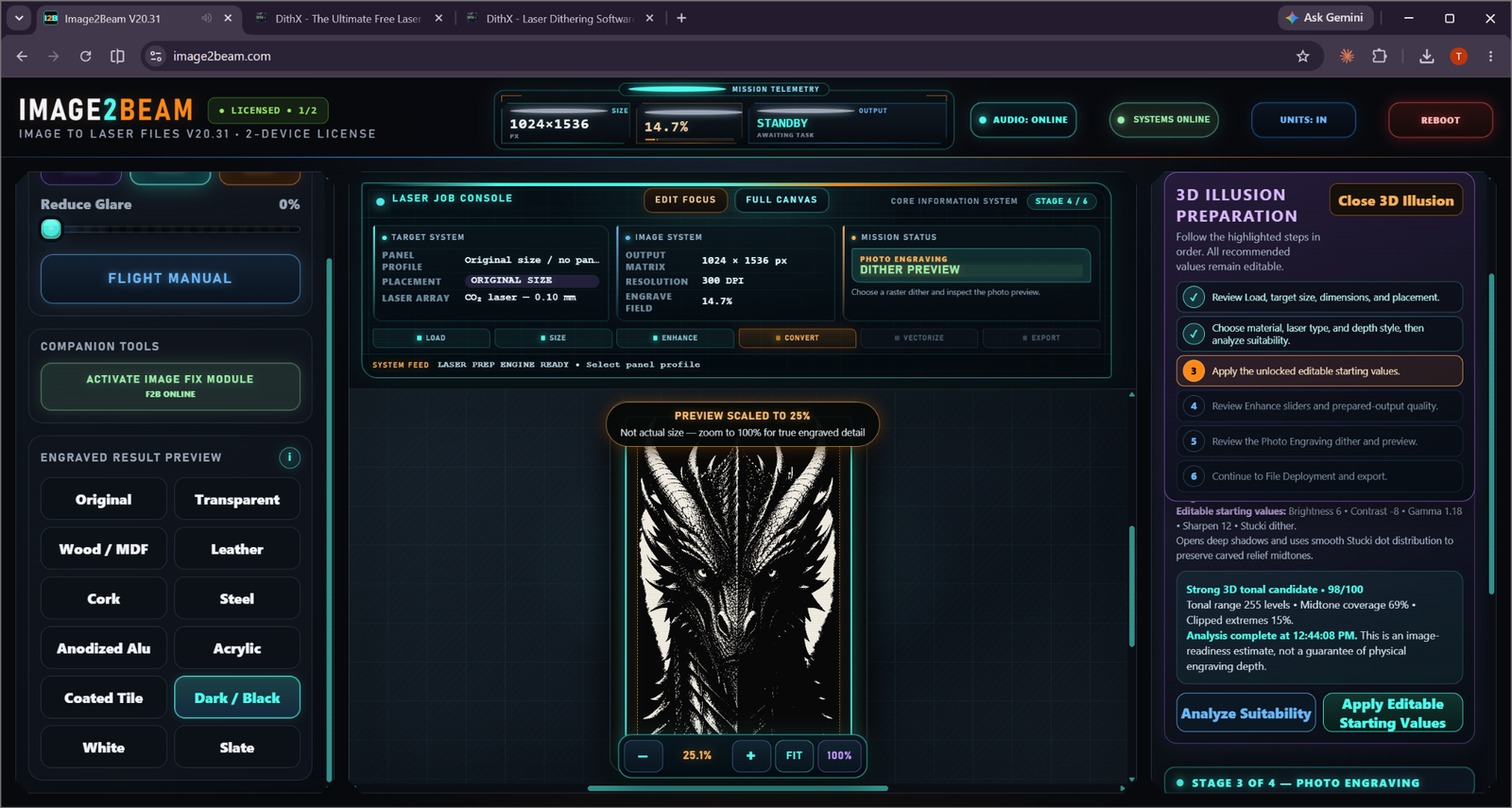
98

Strong 3D tonal candidate

Suitability analysis can report a high-confidence candidate while still making clear that this is image-readiness analysis, not a guarantee of physical engraving depth.

TONAL RANGEMIDTONE COVERAGECLIPPED EXTREMESENGRAVED COVERAGE
ANALYZE → APPLY

Recommendations remain editable.

3D Illusion suitability score and editable starting values

Analyze Suitability

Image2Beam evaluates the source and offers editable starting values appropriate to the selected job.

What Image2Beam can recommend

  • Brightness starting point
  • Contrast starting point
  • Gamma starting point
  • Sharpening level
  • Material/laser dither recommendation
The values are a starting point. The user can review and change them before continuing.
ENGRAVED RESULT PREVIEW

Review the prepared image in material context.

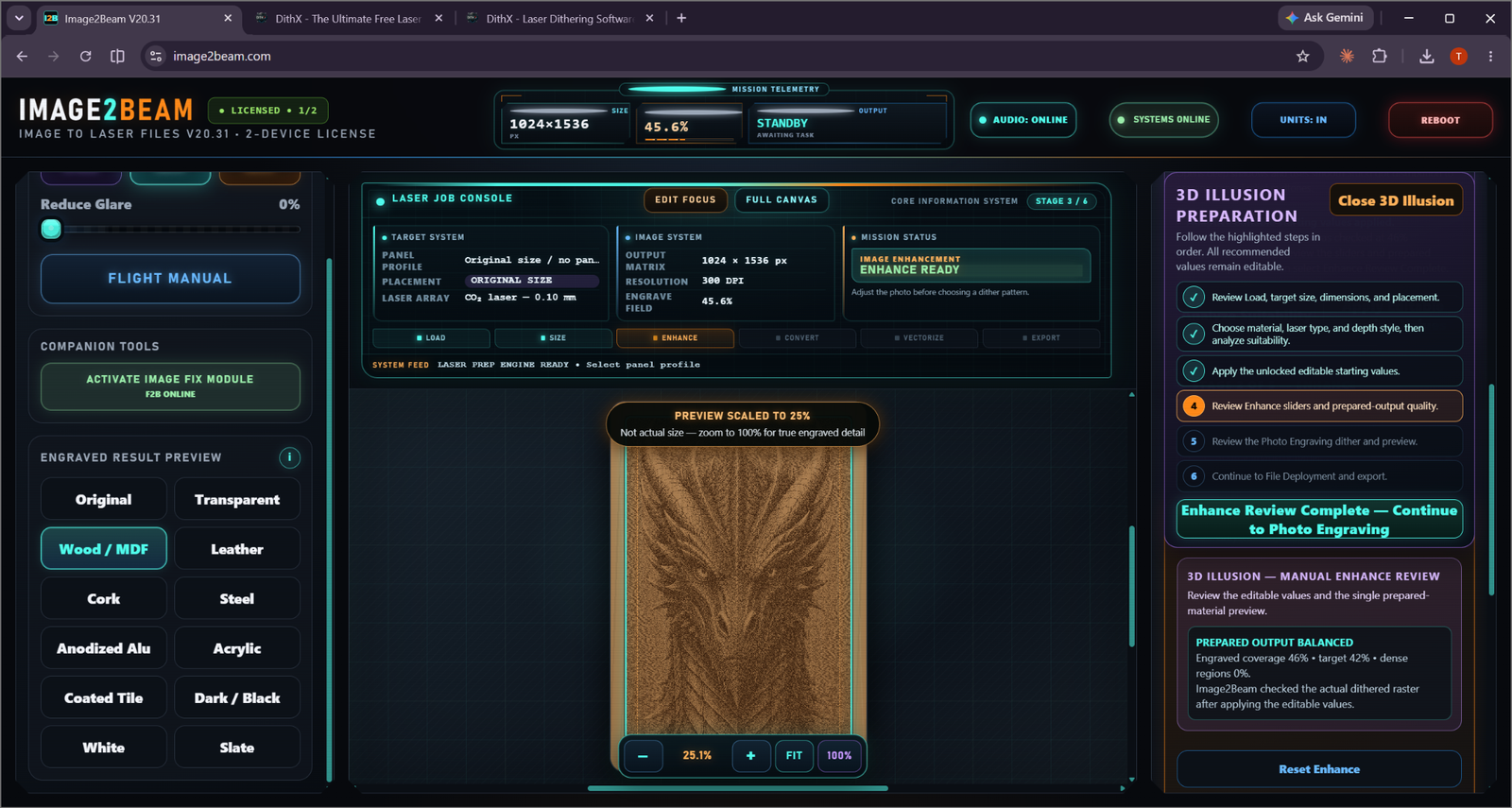
3D Illusion wood MDF engraved result preview

Enhance Review

The prepared output can be inspected with the Wood/MDF material preview while the 3D guide tracks progress.

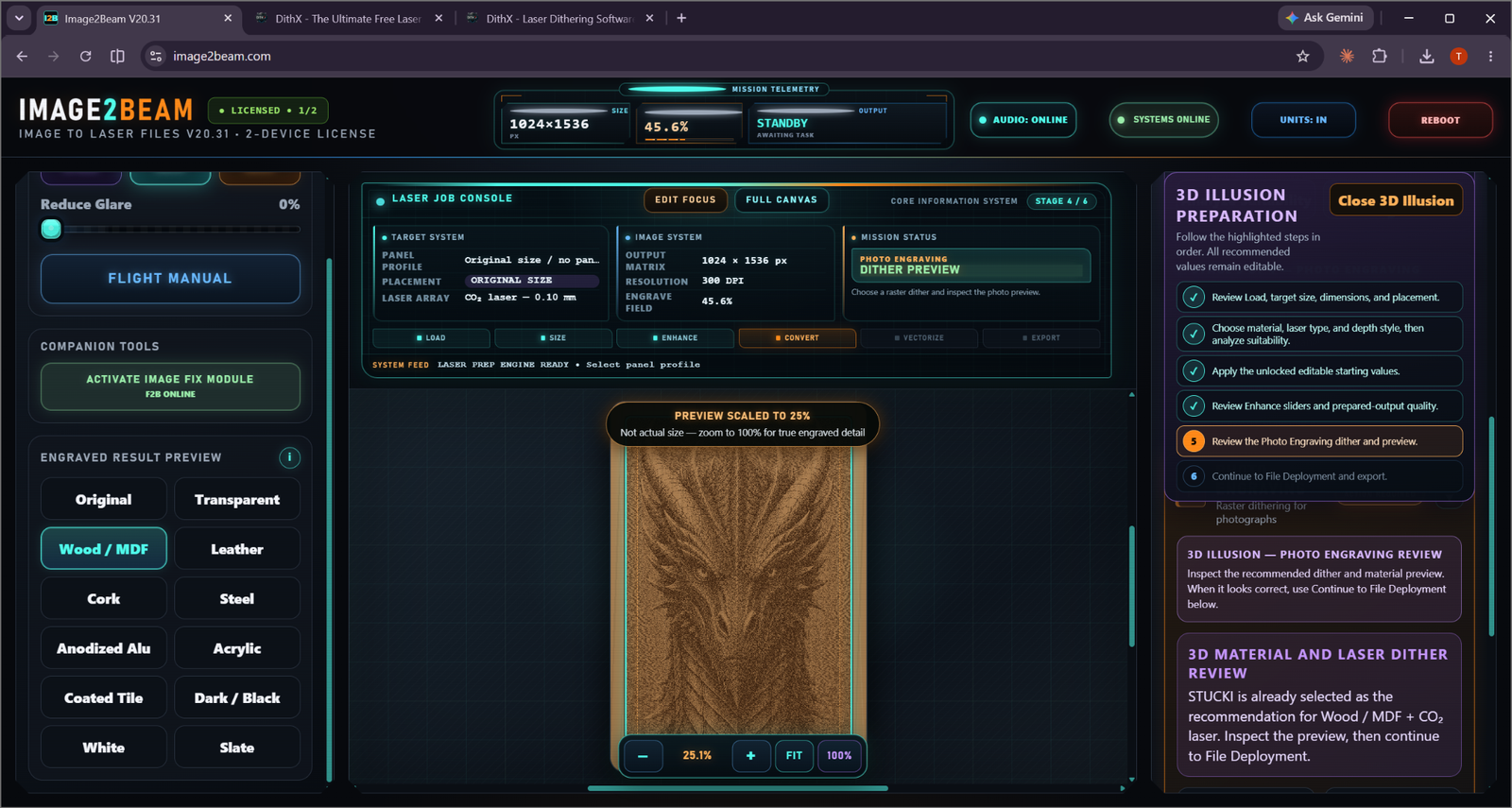
3D Illusion photo engraving review

Prepared Output Balanced

After the editable values are applied, the workflow verifies the prepared raster before the dither review.

MATERIAL + LASER DITHER REVIEW

Use a recommended pattern, then inspect it.

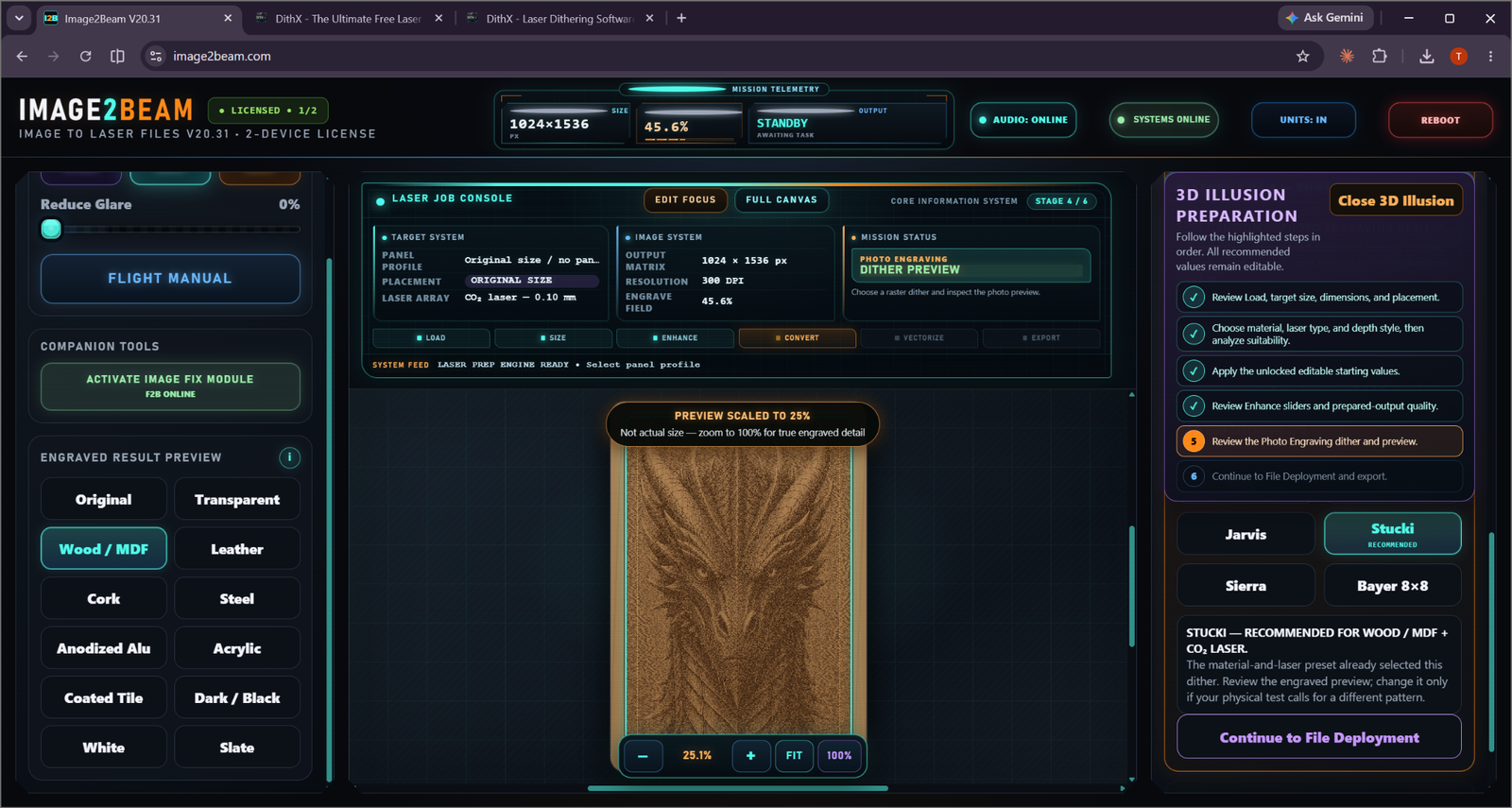
3D Illusion dither options and recommendation

Dither Review

The workflow presents available photo dithers and identifies the recommendation for the selected material/laser combination.

Why this matters

A relief-style image needs usable tonal structure after raster conversion. The 3D workflow does not stop at a preset; it asks the user to inspect the engraved preview before continuing.

JARVISSTUCKISIERRABAYER 8×8
MISSION COMPLETE

Carry the 3D preparation into File Deployment.

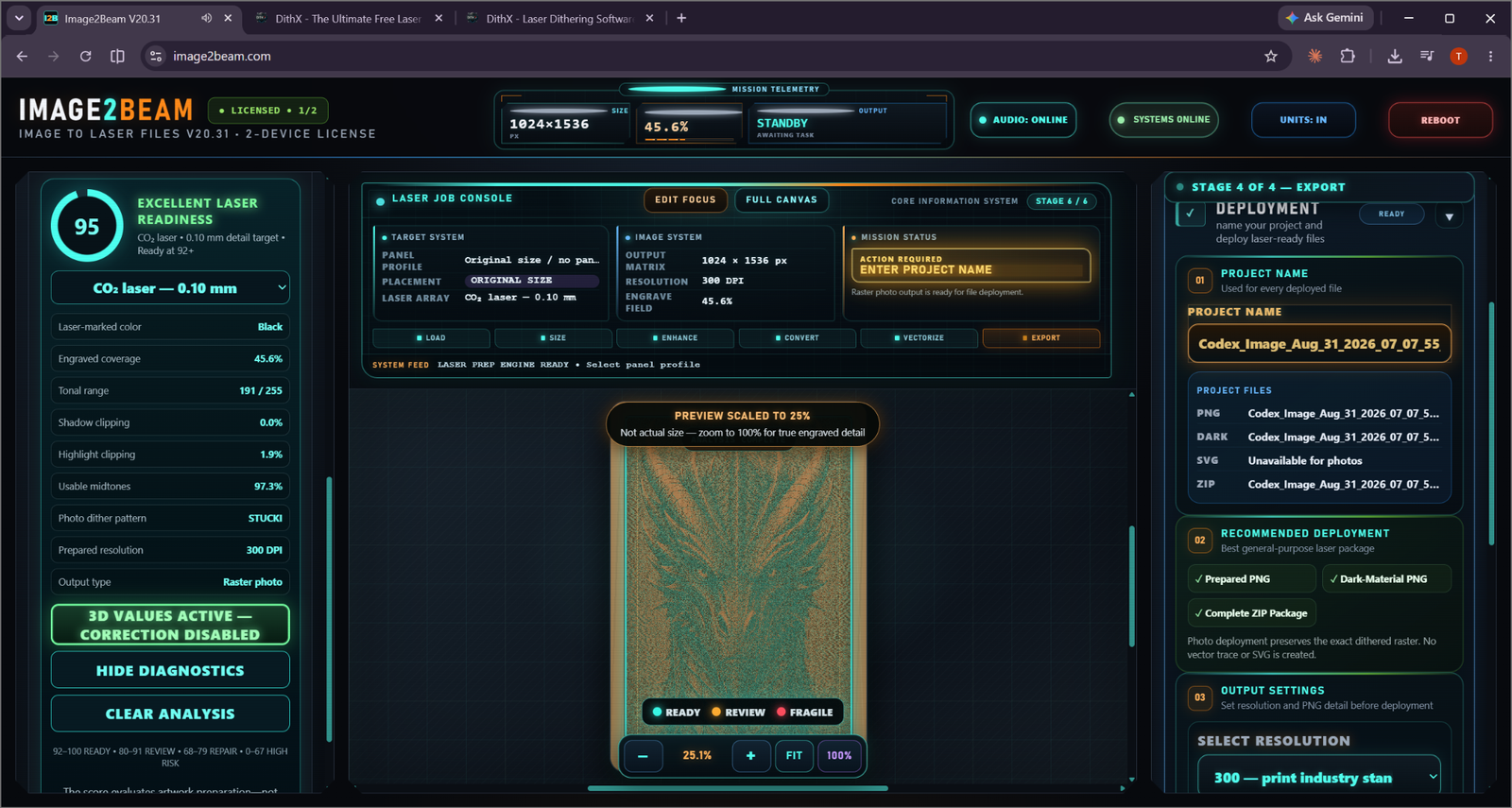
3D Illusion export ready screen

3D Values Active

The readiness panel shows the prepared raster and keeps 3D values active as the job reaches export.

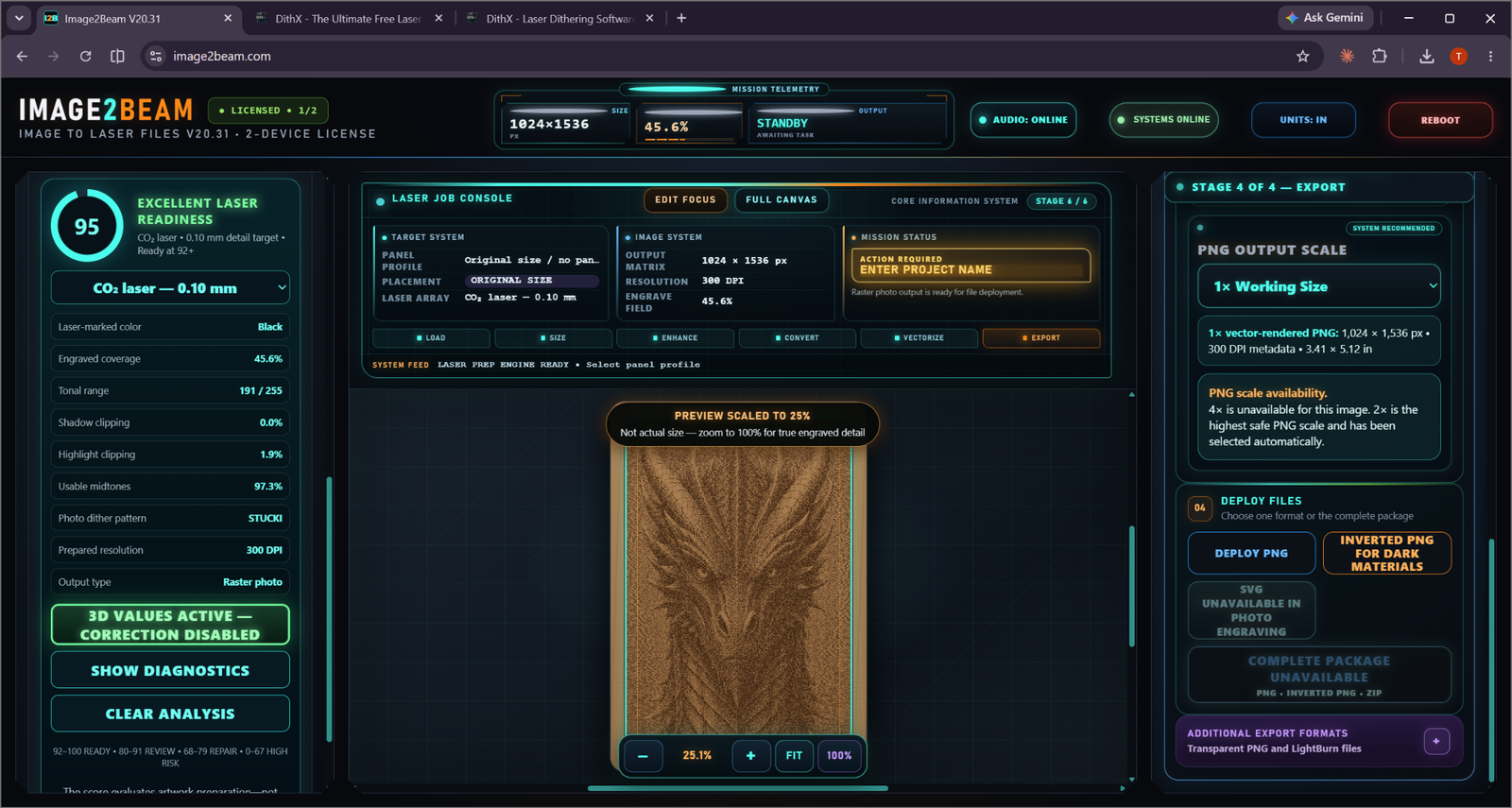
3D Illusion deployment options

Deploy the files

Choose the appropriate raster output for the physical engraving workflow.

3D ILLUSION

Not another generic dither preset.

This is a guided preparation system built around relief-style artwork, material choice, laser choice, tonal suitability, editable recommendations and final raster deployment.

GET IMAGE2BEAM FREE →